Guides
Credentials & Configuration
Set up API keys, environment variables, and configure your ConvoFlow instance.
ConvoFlow requires API keys for various AI services and external integrations. This guide covers how to configure credentials through the UI and environment variables.
Using the Credentials Page
The easiest way to configure API keys is through the ConvoFlow credentials page. This provides a secure interface for managing all your API keys:
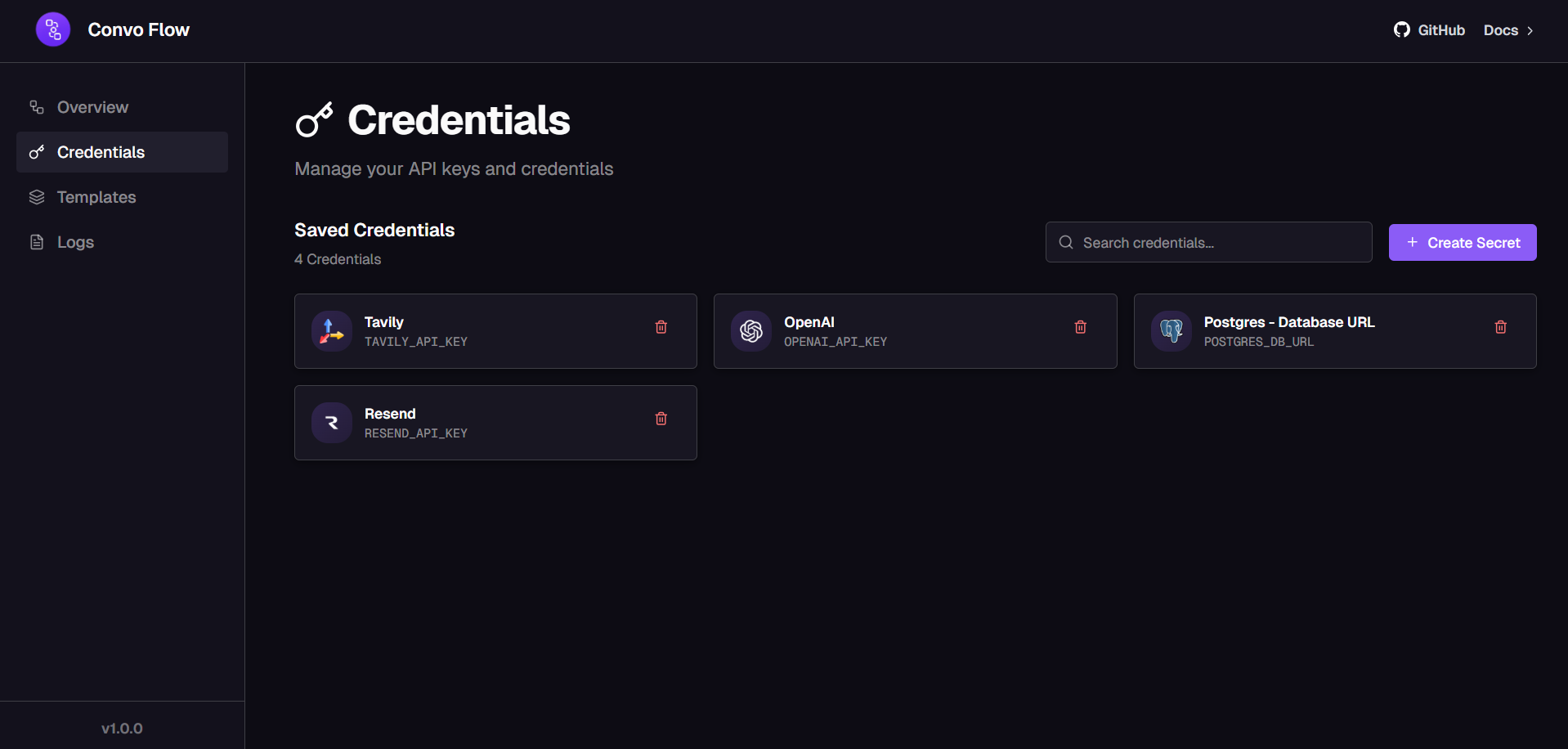
On the credentials page, you can:
- Add and manage API keys for different services
- Update existing credentials
- View which services are configured
- Test API key connections
Required API Keys
Depending on which nodes you use, you'll need different API keys:
AI/LLM Services
- OpenAI: Required for LanguageModelNode when using GPT modelsbash
OPENAI_API_KEY=sk-your-key-here - Anthropic: Required for Claude modelsbash
ANTHROPIC_API_KEY=your-anthropic-key - Groq: Required for fast inference with Groq modelsbash
GROQ_API_KEY=your-groq-key
Database & Storage
- PostgreSQL: Database connection stringbash
DATABASE_URL=postgresql://user:password@host:5432/convoflow - Vector Database: For knowledge base features (if using external vector DB)bash
VECTOR_DB_URL=your-vector-db-connection-string
Environment Variables
You can also configure credentials using environment variables. Create a .env file in your project root:
bash
# AI Service API Keys
OPENAI_API_KEY=sk-your-key-here
ANTHROPIC_API_KEY=your-anthropic-key
GROQ_API_KEY=your-groq-key

# Database Configuration
DATABASE_URL=postgresql://user:password@localhost:5432/convoflow
POSTGRES_PASSWORD=your-secure-password

# Optional: Other Service Keys
CUSTOM_API_KEY=your-custom-service-key

# Application Settings
NODE_ENV=development
PORT=8000
Security Best Practices
Important Security Guidelines
- Never commit API keys or secrets to version control
- Use environment variables or the credentials UI for sensitive data
- Rotate API keys regularly, especially if they're exposed
- Use different keys for development and production environments
- Restrict API key permissions to only what's necessary
- Monitor API usage to detect unauthorized access
Verifying Configuration
After configuring your API keys, you can verify they're working:
- Check the credentials page - configured services should show as active
- Test a workflow that uses the configured service
- Check the browser console or logs for any authentication errors
- Verify API key permissions match your workflow requirements
Troubleshooting
Common Issues
- API key not working: Verify the key is correct and has the right permissions. Check for extra spaces or characters.
- Environment variables not loading: Make sure your
.envfile is in the root directory and restart the application. - Credentials page not accessible: Ensure you're logged in and have the necessary permissions.
- Rate limiting errors: Check your API key usage limits and consider upgrading your plan if needed.
Was this page helpful?